































Your MacBook is more than just a laptop — it reflects your style, personality, and creativity. While Apple's sleek aluminium design is instantly recognisable, many users in the UK prefer to personalise their devices to make them stand out.
Laser engraving offers a clean and professional way to achieve this. By etching permanent and precise designs onto the MacBook's surface, you can transform your device into a truly personalised piece. Whether you choose simple text, company logos, or detailed artwork, laser engraving allows you to express individuality without affecting performance or usability.
In this guide, we'll explore everything you need to know about MacBook laser engraving, including how it works, the tools required, safety considerations, and creative ideas to inspire your own customisation.

In this article:
- Part 1: Overview of MacBook Laser Engraving
- 1.1 What Is MacBook Laser Engraving?
- 1.2 How Does Laser Engraving Work on a MacBook?
- 1.3 Which Engraving Machine Works Best for MacBook Engraving?
- 1.4 Safety Precautions Before Engraving a MacBook
- Part 2: Why Use a Laser for MacBook Engraving?
- Case Study: How to Laser Engrave a MacBook in 5 Steps 💡
- Part 4: How to Laser Engrave a MacBook in 5 Steps
- Part 5: FAQs Hot Questions about MacBook Laser Engraving
Part 1: Overview of MacBook Laser Engraving
1.1 What Is MacBook Laser Engraving?
MacBook laser engraving is the process of using a focused laser beam to etch text, patterns, or images directly onto the aluminium casing of a MacBook. Apple also offers a limited engraving service when purchasing a new device, but post-purchase laser engraving gives UK users far more flexibility in design and placement.
This method delivers permanent, high-precision results without the need for stickers, paint, or adhesives. The engraved design becomes part of the MacBook itself, making it highly durable and resistant to fading, scratching, or peeling. For users in the UK who want a professional finish, laser engraving is often preferred over vinyl skins or decals.

1.2 How Does Laser Engraving Work on a MacBook?
Laser engraving works by directing a concentrated beam of light onto the MacBook's anodised aluminium surface. The laser removes the top oxide layer with pinpoint accuracy, revealing a contrasting design underneath.
The entire process is controlled by computer software, which ensures consistent and precise results. This allows detailed artwork, logos, and fine text to be engraved cleanly. For UK hobbyists and small businesses, this level of control makes laser engraving suitable for both personal customisation and branded devices.
1.3 Which Engraving Machine Works Best for MacBook Engraving?
For engraving on a MacBook, a 1064 nm laser engraver is typically the most effective option. Fibre lasers are designed for metals such as aluminium, offering higher precision and faster engraving speeds compared to diode or CO₂ lasers. They can produce sharp, detailed engravings without affecting the MacBook's structural integrity.
A high-quality fibre laser with adjustable power and speed settings is recommended for professional workshops or small businesses.
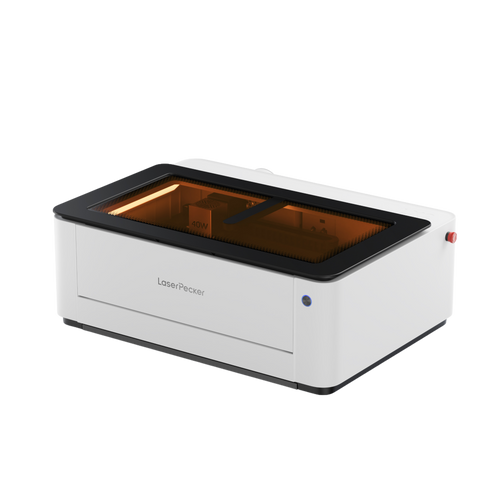
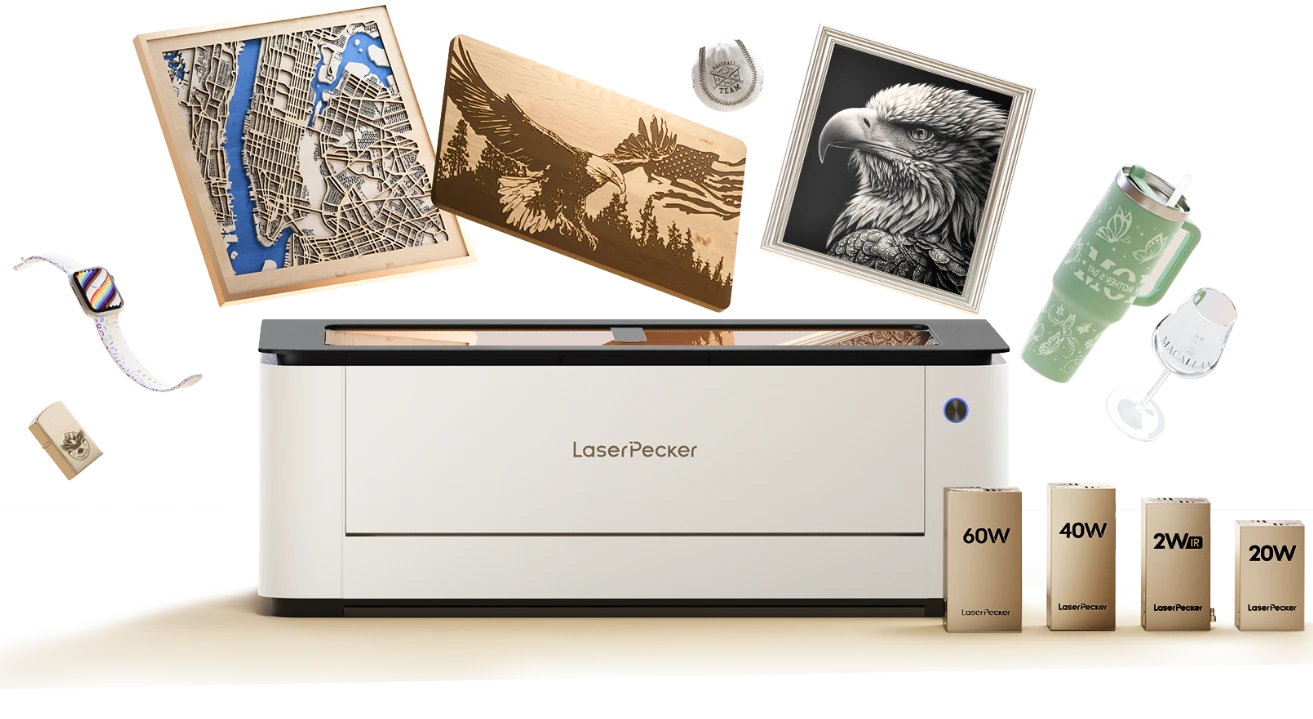
For home users in the UK, compact fibre or dual-laser machines such as LP5, LP4, ,LP3 and LX2 are practical options. These MacBook laser engraving machines are:
- User-friendly operation
- Compact desktop-friendly installation
- Cost-effective entry into metal engraving workflows
- Reliable performance on anodised aluminium surfaces
For users planning to engrave larger artwork layouts across the MacBook lid, the LX2 provides additional flexibility thanks to its 500 × 305 mm working area, which allows wider engraving coverage in a single setup without repositioning the device. This makes it especially suitable for creators producing large-format logos, branding graphics, or personalised lid designs in UK home studios or small creative workspaces.
1.4 Safety Precautions Before Engraving a MacBook
Since a MacBook is an expensive and sensitive electronic device, certain safety precautions are essential:
- Proper Ventilation: Laser engraving on anodized aluminium can produce fumes—ensure you work in a well-ventilated space.
- Protective Gear: Always wear laser safety glasses appropriate for your machine.
- Test Settings First: Run a test on a scrap aluminium piece to fine-tune power and speed before engraving the actual MacBook.
Part 2: Why Use a Laser for MacBook Engraving?
Laser engraving has become one of the most popular methods for customising MacBooks. Unlike stickers, skins, or printed decals that may peel or fade over time, laser engraving creates a permanent design that becomes part of the MacBook's aluminium body. For users in the UK, this makes it a reliable option for both personalisation and professional branding.
① Precision and Detail
Laser technology enables extremely fine detail, allowing you to engrave everything from simple text to complex logos or intricate artwork. The results are sharp, clean, and consistent across the entire surface.
For UK creators and small businesses, this precision is particularly useful when engraving company branding or detailed design elements.

② Durability
Because the engraving modifies the MacBook's anodised aluminium surface, the design becomes scratch-resistant and will not wear away with everyday use. This durability makes laser engraving ideal for long-term personalisation or business identification.
③ Professional Appearance
Laser engraving produces a sleek, high-end finish that complements the MacBook's premium design. Whether used for personal customisation or company branding, the result looks polished and professional.
This is why many UK businesses choose laser-engraved MacBooks for employee devices or client gifts.
④ Versatility
Laser engraving is suitable for individuals, businesses, and organisations. You can personalise your MacBook with:
- Names or initials
- Inspirational quotes
- Custom artwork
- Company logos
- Event or promotional designs
This flexibility makes it suitable for both personal use and corporate branding.
⑤ Eco-Friendly Customisation
Unlike chemical etching or paint-based methods, laser engraving is a clean and eco-friendly process. It does not require inks, solvents, or adhesives, which helps reduce environmental impact.
For UK home users, this also means less mess and safer indoor operation when combined with proper ventilation or an air purification system.
Case Study — How to Laser Engrave a MacBook in 5 Steps 💡
Preparation checklist for laser engraving MacBook:
- Engraving Material: MacBook
- Engraving Machine: 1064 nmLaser Engraver
- Engraving Design: Name, Logo, Images, Patterns, etc.
Can you engrave a MacBook? Yes. The process is straightforward. Many users in the UK complete a MacBook laser engraving in just a few minutes by following the steps below.
Step 1: Prepare Your Design
Start with the artwork, logo, or text you want to engrave. Vector files (such as SVG or AI) provide the cleanest results, although most engraving software also supports images and text.
Fine lines and high-contrast designs work best on anodised aluminium, ensuring crisp and professional results.
Step 2: Choose the Right Laser Engraving Machine for MacBook Engraving
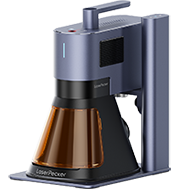
Here, we recommend LaserPecker 4 (LP4), which features a 10W 450nm diode laser, 2W 1064nm IR laser, and engraving speeds of up to 4,000 mm/s. This combination delivers precise performance suitable for MacBook aluminium engraving.
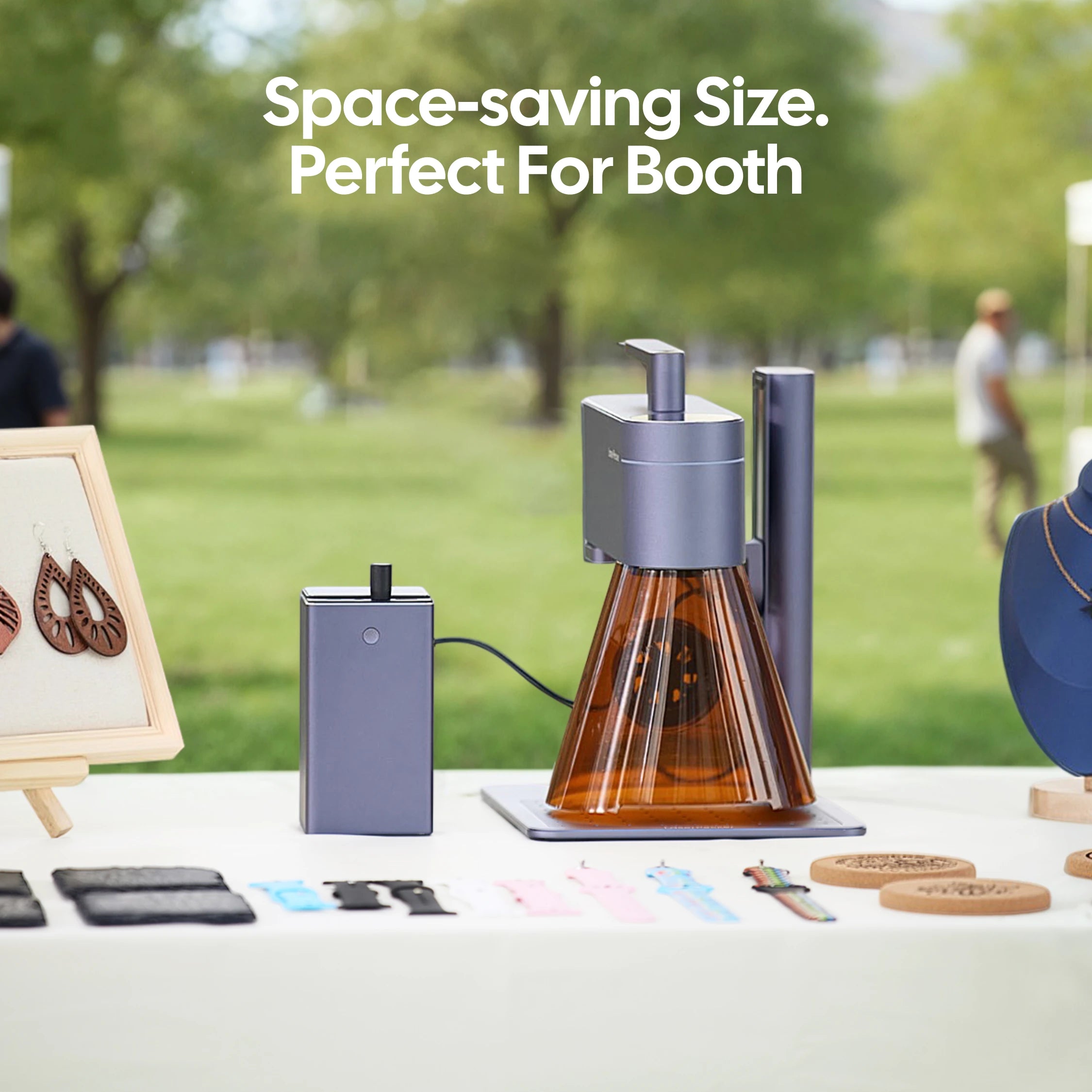
For UK home workshops or small businesses, compact dual-laser machines provide both flexibility and ease of use.
Step 3: Position and Secure the MacBook
Clean the MacBook's aluminium surface using a microfibre cloth to remove dust, oils, or debris. Place the MacBook flat and secure it firmly inside the laser engraver to prevent movement during engraving.
Proper positioning helps ensure consistent engraving accuracy.
Step 4: Set up the MacBook Laser Engraving Machine
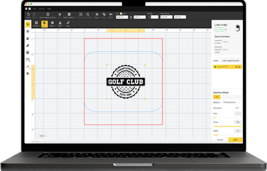
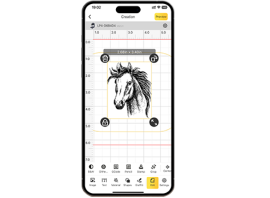
Use a graphic design app/software from LaserPecker or third-party tools such as Photoshop to create or import your design. Consider the size, placement, and layout before engraving.
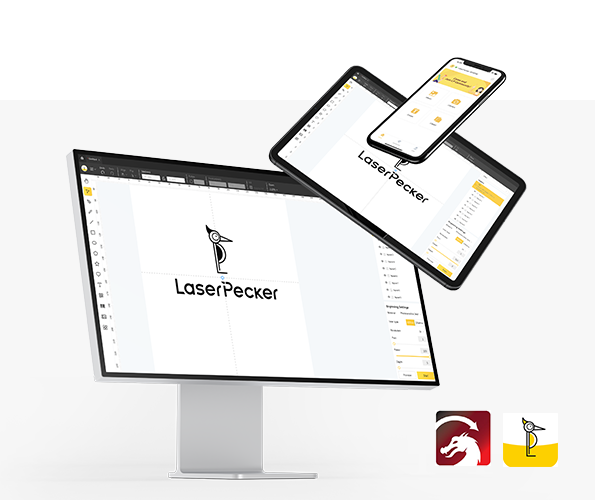
You can also visit LaserPecker CraftZone for inspiration or to purchase design files.
Now configure the engraving parameters:
- Power on your engraver and connect it to your computer or mobile device via Wi-Fi, USB, or Bluetooth.
- Open the LaserPecker Design Space and load your design (JPG, PNG, G-code, SVG formats supported).
- Place the MacBook within the working area and enable Preview Mode to confirm positioning.
- Check that your design fits properly, adjusting size and alignment if necessary.

Finally, adjust parameters such as power, speed, and resolution.
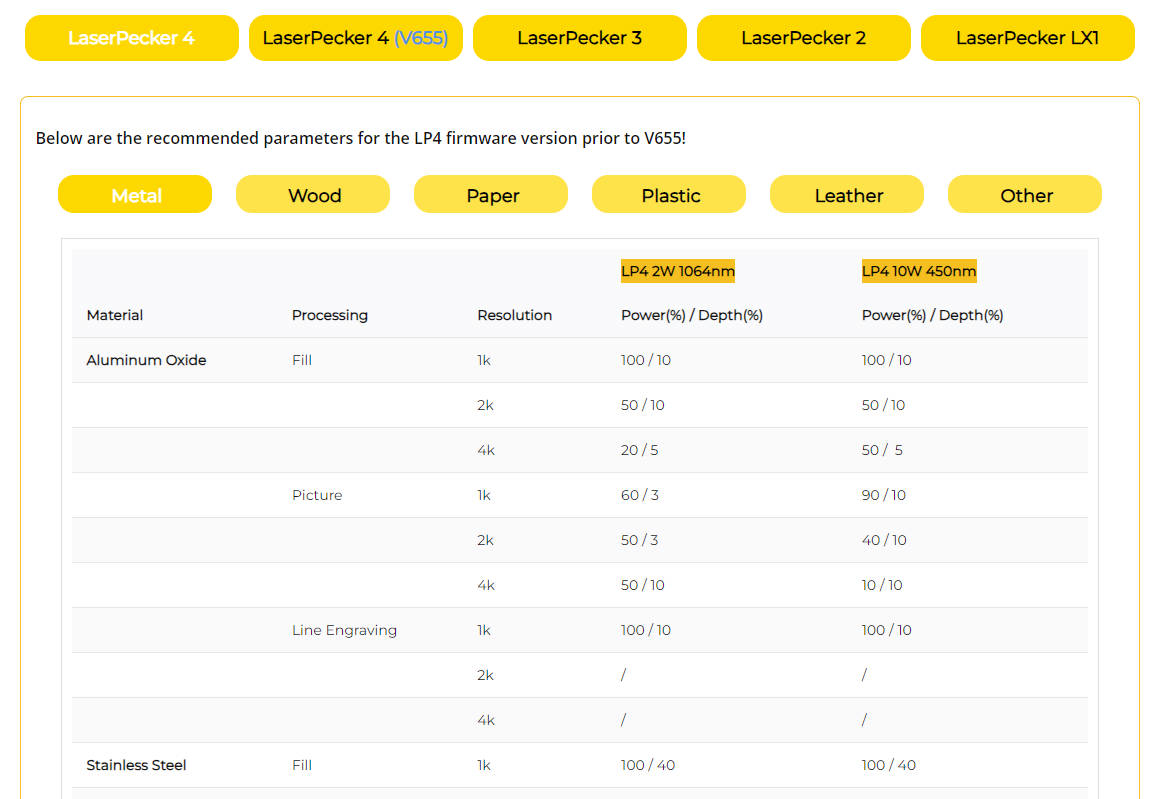
To achieve optimal results, the recommended laserpecker engraving and cutting parameters for MacBook engraving are:
- 2 W 1064 nm IR Laser
- Resolution: 4K
- Power: 60%
- Depth: 1%
- Pass: 1
When operating a laser engraving machine, always wear goggles or use a protective cover to shield your eyes and skin from laser exposure.
Additionally, fumes may be produced during engraving. For UK indoor use, wearing a mask or using an air purifier is strongly recommended to maintain a safe working environment.
Step 5: Start Engraving Your MacBook With Laser Now
Double-check all settings before starting. Then press the start button and monitor the engraving process.
Once finished:
- Allow the surface to cool
- Gently wipe with a soft cloth
- Inspect details for consistency
Your MacBook is now permanently customised with a clean, professional engraving.

Part 4: Creative Ideas for MacBook Laser Engraving
Laser engraving opens up a wide range of personalisation options for your MacBook. Whether you want a subtle design or something more distinctive, the ideas below can help inspire your next custom project. For users in the UK, these engraving styles are popular for both personal use and professional branding.
1. Minimalist Text Engravings
Add your name, initials, or favourite quote in a clean font for a simple yet professional appearance. Minimalist engravings complement the MacBook's aluminium finish and maintain a sleek aesthetic.
2. Custom Artwork
Engrave detailed patterns, mandalas, or abstract designs to create a truly one-of-a-kind MacBook. Fine-line artwork works especially well with fibre laser engraving on anodised aluminium.
3. Logos and Branding
Laser engraving is ideal for professionals and businesses looking to display their brand identity. Many UK companies engrave logos on employee MacBooks, client gifts, or promotional devices.
4. Pop Culture Icons
Showcase your favourite movie characters, gaming artwork, or anime-inspired designs. This option is popular among students and creative users who want to personalise their device.
5. Functional Engravings
Add practical details such as contact information or QR codes. This can help identify your device quickly if it is misplaced, making it a useful option for workplaces and shared environments.
Part 5: FAQs Hot Questions about MacBook Laser Engraving
Q1. Does laser engraving void my MacBook warranty?
In most cases, yes. Since engraving alters the physical surface of the MacBook, Apple's warranty may not cover issues related to the engraved area. It's always advisable for users in the UK to confirm warranty terms before proceeding.
Q2. Can laser engraving damage my MacBook's functionality?
No, if performed correctly. Laser engraving only affects the surface anodised aluminium layer and does not impact internal components or performance.
Q3. What type of laser is best for MacBook engraving?
A fibre laser is typically the best option for engraving anodised aluminium, as it provides precise, clean, and permanent results.
Q4. Can I remove or undo a laser engraving?
Laser engraving is permanent. The only way to modify it is by refinishing or replacing the MacBook's outer casing.
Q5. How long does MacBook laser engraving take?
Depending on the design complexity, engraving usually takes between 1 and 5 minutes.
Q6. Is it safe to laser engrave a MacBook at home?
Yes, many UK users engrave MacBooks at home using compact laser engravers. However, you should always wear protective goggles, ensure proper ventilation, and use an air purifier if working indoors to maintain a safe environment.
Conclusion
Laser engraving a MacBook is more than simple decoration — it's a way to express your identity while adding long-term value to your device. Whether you engrave your initials for a professional touch, your company's logo for branding, or detailed artwork for creative flair, the results are precise, durable, and truly unique.
With the right machine, careful preparation, and a bit of creativity, you can transform a standard MacBook into a personalised device that reflects your style. For users in the UK, laser engraving is an increasingly popular option for both personal customisation and professional branding.
Although engraving is permanent, this permanence is what makes it special. Your design remains intact throughout the lifespan of your MacBook, without fading or peeling.
If you're looking to give your MacBook a signature look that stands out, laser engraving is a reliable and professional solution.