
































Maps are more than just navigation tools — they capture memories, tell stories, and make striking pieces for home décor, classrooms, offices, or meaningful gifts.
With laser cutting technology, you can transform digital Ordnance Survey layouts, city street maps, or regional outlines into intricate works of art. From detailed London borough maps to countryside contour designs, every line and boundary can be reproduced with exceptional precision.
In this guide, we'll walk you through the best materials for laser-cut maps, step-by-step instructions to create them, and explain why the LaserPecker LP5 is the perfect choice for crafting your own customized map art.

In this article:
Part 1: Tools and Materials Needed for Cutting a Map with Laser
Make sure you have all your tools and materials ready before you begin. This way, things should go off without a hitch. Here's a list of things that you're going to need:
A laser cutter/engraver:
Make sure it's able to do fine work and cut cleanly.
Map File:
Prepare your map as a vector file (SVG, DXF, or AI format) so the laser cutter can interpret the lines accurately. If you're working with detailed UK mapping data, simplify the file to reduce excessive node density before importing.
Material:
Basswood, birch plywood, MDF, or cast acrylic are commonly used in the UK. Cardboard can also be used for testing layouts before final production. These materials work well for both the main map structure and fine detail layers.
Part 2: Step-by-Step Guide to Laser Cutting a Map
Laser cutting a layered map may seem complex at first, but the process becomes straightforward once broken into clear steps. Let's get started:
Step 1: Find Your Map Image
Begin by choosing a map that has personal meaning — your hometown, a favourite holiday destination, or even a detailed UK city layout. You can source images from Google Maps o an open-source map platform. Ensure the resolution is high enough so that smaller roads and boundaries remain clear when tracing.
Step 2: Convert the Image to a Vector File
Open the image in Inkscape (a free design tool) or similar vector software. Use the Trace Bitmap function to convert your PNG or JPG into a vector format such as SVG or DXF. Once converted, delete the original raster image and keep only the clean vector paths.
For a layered map, you can separate it into four layers:
- Base layer – represents the water background.
- Land layer – includes coastlines and main shapes.
- Street layer – shows engraved streets or smaller details.
- Frame layer – adds borders, titles, or decorative edges.
Step 3: Adjust and Clean Up Your Design
Refine the vector paths by removing unnecessary nodes or overlapping lines. Simplify overly detailed sections, especially dense city centres. Make sure each layer aligns correctly. Adjust stroke settings so your laser cutter software clearly distinguishes between engraving and cutting paths.
Step 4: Laser Cutting and Engraving
Import the separated layers into your laser software. A typical cutting order is:
- Engrave the streets first: low power, high speed to etch surface details.
- Cut the land outlines: high power, slower speed for clean cuts.
- Cut the frame last: this brings all your layers together neatly.
Step 5: Assemble the Layers
Organise the cut pieces carefully: base (water), land, streets, and frame. Apply glue evenly — a small brush helps with corners and narrow sections. Stack them in order: base at the bottom, land on top, then engraved street layer, and finally the frame.
Step 6: Add the Finishing Touches
Allow the adhesive to dry fully. Lightly sand any rough edges if needed. You may apply a clear sealant, stain, or paint to enhance contrast and protect the surface. Once complete, your laser-cut map is ready to display or gift — a personalised piece with lasting meaning.
Part 3: Recommended Laser Cutter for Map Projects
When creating highly detailed layered maps, precision, speed, and material flexibility are essential. The LaserPecker LP5 is a strong option thanks to its dual-laser system, offering greater versatility for both cutting and fine engraving.

The 20W Diode Laser provides sufficient power to cut materials such as basswood or plywood (up to 20mm, depending on material type and settings). It is also suitable for engraving wood, acrylic, and leather — all popular choices for layered map projects.
The 20W Fibre Laser is designed for high-precision engraving. It performs particularly well when producing fine text, small map coordinates, or intricate line details that require sharp definition.
Additional Features of LP5
Feature 1: Speed & Accuracy
With engraving speeds of up to 10,000 mm/s, complex map layers can be processed efficiently while maintaining clean detail reproduction.
Feature 2: Engraving and Cutting Versatility
The LP5 supports layered engraving techniques, enabling depth variation and subtle 3D-style map effects.
Feature 3: Extended Work Area
With the slide extension, the working area expands to 160 × 300 mm, making it suitable for medium-to-large map designs.
Feature 4: Rotary Capability
Optional rotary accessories allow engraving on cylindrical items, such as adding map coordinates to tumblers or decorative pieces.
Feature 5: Software Compatibility
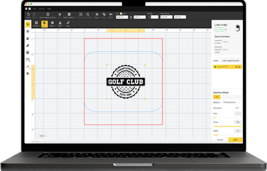
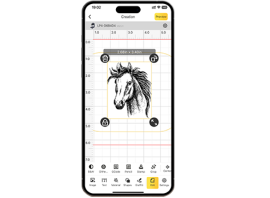
The system works with LightBurn and LaserPecker Design Space, supporting flexible workflow integration.
Safe to Use Inside: The Safety Enclosure makes the LP5 a Class 1 laser, so it's safe for your house or workshop.Because of these things, the LP5 helps you cut precise shapes and engrave fine map details fast and predictably.
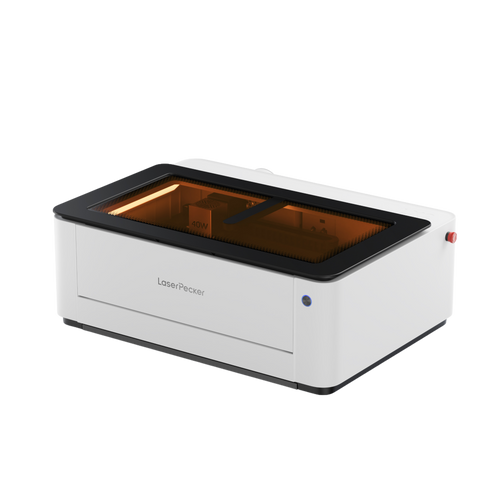
Or, you can choose the LaserPecker LX2. With powerful 20W/40W/60W diode laser options, it's built to cut through larger materials effortlessly—making it the ultimate choice for large-scale map cutting projects.
Part 4: Practical Tips for Laser Cutting Map Designs
Here's how to make your laser-cut map look its best:
Start Simple
For your first attempt, begin with larger shapes such as countries, counties, coastlines, or lakes. Simpler layouts allow you to understand how the laser interacts with wood or acrylic before tackling intricate city street grids. Once confident, you can move on to more detailed urban designs.
Use Layers for Depth
Creating separate layers for borders, rivers, streets, or text adds visual depth. Stack these layers carefully to produce a dimensional, almost relief-style effect that enhances the overall presentation.
Experiment with Materials
Wood provides a traditional, warm aesthetic. Acrylic offers a cleaner, more contemporary appearance. Cardboard is ideal for low-cost testing and prototypes. Trying different materials helps you understand how engraving contrast varies across surfaces.
Keep Your Workspace Clean
Dust and debris can leave marks or affect engraving clarity. Wipe down materials before cutting and clean your laser lens regularly to maintain sharp results.
Enhance with Finishing Touches
After cutting, consider staining or painting wooden layers for added contrast. Acrylic maps can be backlit for a modern display effect, while cardboard designs look striking against coloured backing boards. These finishing details elevate the final presentation.
Part 5: FAQs about Laser Cutting Maps
Q1. What are the best materials for laser-cut maps?
Wood is the most popular choice in the UK because it cuts cleanly, remains stable, and offers a natural finish that complements map designs. Basswood and birch plywood are especially suitable. Acrylic works well for a more contemporary look, particularly for backlit wall décor. Cardboard is useful for prototypes, while metal can create durable, industrial-style pieces but requires more advanced settings.
Q2. Do I have to be a design expert to make a map file?
No. Many online tools can convert map data into vector files quickly. Beginners can start with simple edits in software such as Illustrator or Inkscape. Learning to adjust stroke thickness and simplify paths is usually enough to produce clean laser-ready files.
Q3. Can I reproduce tiny streets and rivers?
Yes — provided your laser system offers high precision. Machines like the LP5 can handle fine line work accurately. For best results, use high-quality vector files and fine-tune your engraving depth to avoid excessive burn marks. Zooming in during the design stage helps eliminate overlapping nodes.
Q4. What's the largest laser-cut map I can create?
The maximum size depends on your machine's working area. Standard desktop systems are suited to smaller decorative panels. With an LP5 slide extension, the workspace expands to 160 × 300 mm, suitable for medium-sized wall décor. For larger projects, machines like the LaserPecker LX2 offer a significantly bigger working area of 500 × 305 mm (19.7″ × 12″), allowing you to create larger map pieces in a single pass. You can also divide oversized maps into sections and assemble them after cutting for even greater scale.
Q5. Can I use Ordnance Survey map data for laser cutting?
Ordnance Survey data is protected by copyright. If you plan to sell laser-cut maps based on OS data, you must ensure you have the appropriate licence. For personal projects, check usage permissions before exporting or tracing official mapping data.
Q6. Are laser-cut maps suitable for UK home décor trends?
Yes. Layered wood maps align well with popular UK interior styles such as minimalist, Scandinavian, and rustic décor themes. Neutral wood finishes are especially versatile.
Q7. Is ventilation important when laser cutting indoors in the UK?
Yes. Laser processing produces fumes and fine particles. Proper ventilation or an air purification system is recommended, particularly in enclosed home workshops.
Conclusion
Laser-cut maps combine craftsmanship, design, and modern fabrication technology. With suitable materials and LP5, you can create personalised décor pieces, meaningful gifts, or small business products. For larger map cutting projects, machines like the LaserPecker LX2 are also a strong choice, offering a bigger working area and the ability to handle more expansive designs efficiently.
From detailed city street engravings to layered regional designs, the process is accessible to beginners while offering room for advanced creativity. With proper preparation and safe operation, laser-cut map projects can be both rewarding and commercially viable.